
A Step-by-Step Guide to Create 3D Floor Plans with 3D House Planner
Do you want to create 3D floor plans without installing heavy software or paying for a license? The new version of 3D House Planner runs entirely in your browser and now brings an AI assistant, a 2D plan that stays in sync with the 3D model, realistic rendering modes and real BIM data. In this step-by-step guide we build a small house from scratch and show every tool you need, from the first wall to the final export.
Key takeaways: create 3D floor plans in your browser
- You can create 3D floor plans for free, with no login and nothing to install.
- Draw walls in 3D or on the 2D plan: both views update each other live.
- Furnish with thousands of catalog objects and textures, or describe your house to the AI assistant.
- Render from a light Draft mode up to Ultra, path tracing or an AI photo.
- Export to IFC 4 (BIM), DXF, GLB, glTF, OBJ, STL, SVG, PDF, CSV or PNG.
Table of Contents
What is 3D House Planner?
3D House Planner is a free web application to design houses and apartments and to create 3D floor plans directly in the browser. It is free for personal and commercial use, it works in any modern browser and your projects stay private: they are saved in your own browser, with autosave and crash recovery, and you can export everything at any time. The interface is available in ten languages and you can switch between meters and feet with one click.
The editor combines several tools in one place: a 3D modeler with walls, floors, roofs, doors and windows; a 2D planner with rooms and dimensions; a catalog with thousands of objects and textures; an AI assistant that builds with the same tools as you; and a BIM layer where every element carries IFC classes, quantities and costs. You can design up to 50 floors per project.
Step 1: Open the editor and learn the interface
Open the 3D House Planner editor. There is no account to create: you can start drawing right away. Before you create 3D floor plans, take a minute to learn where each tool lives:
- Top bar: the four views (3D, Walk, Top and 2D plan), the level selector, Frame all, File, Catalog, the render quality menu, the AI assistant and BIM.
- Floors & grid panel: choose how many floors are visible, set the snap to grid and duplicate a level.
- Tool panel with three tabs: View and light (time of day, date, seasons and sun study), Build (walls, floors, roofs, openings, roads, terrain) and Measure, copy and paint (measurements and the material brush).
- Status bar: the 2D ⇄ 3D sync indicator, the units (meters or feet) and the language.
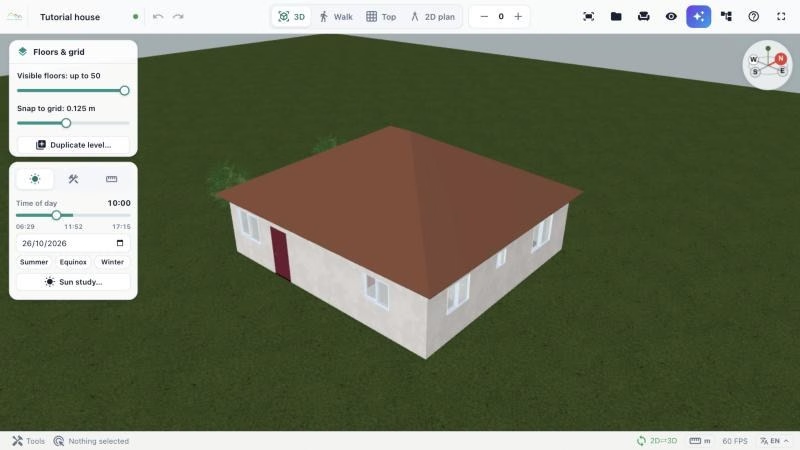
Tip: if you get lost in the scene, click Frame all (or press the Home key) to bring the whole project back into view.
Step 2: Draw the walls with the Wall builder
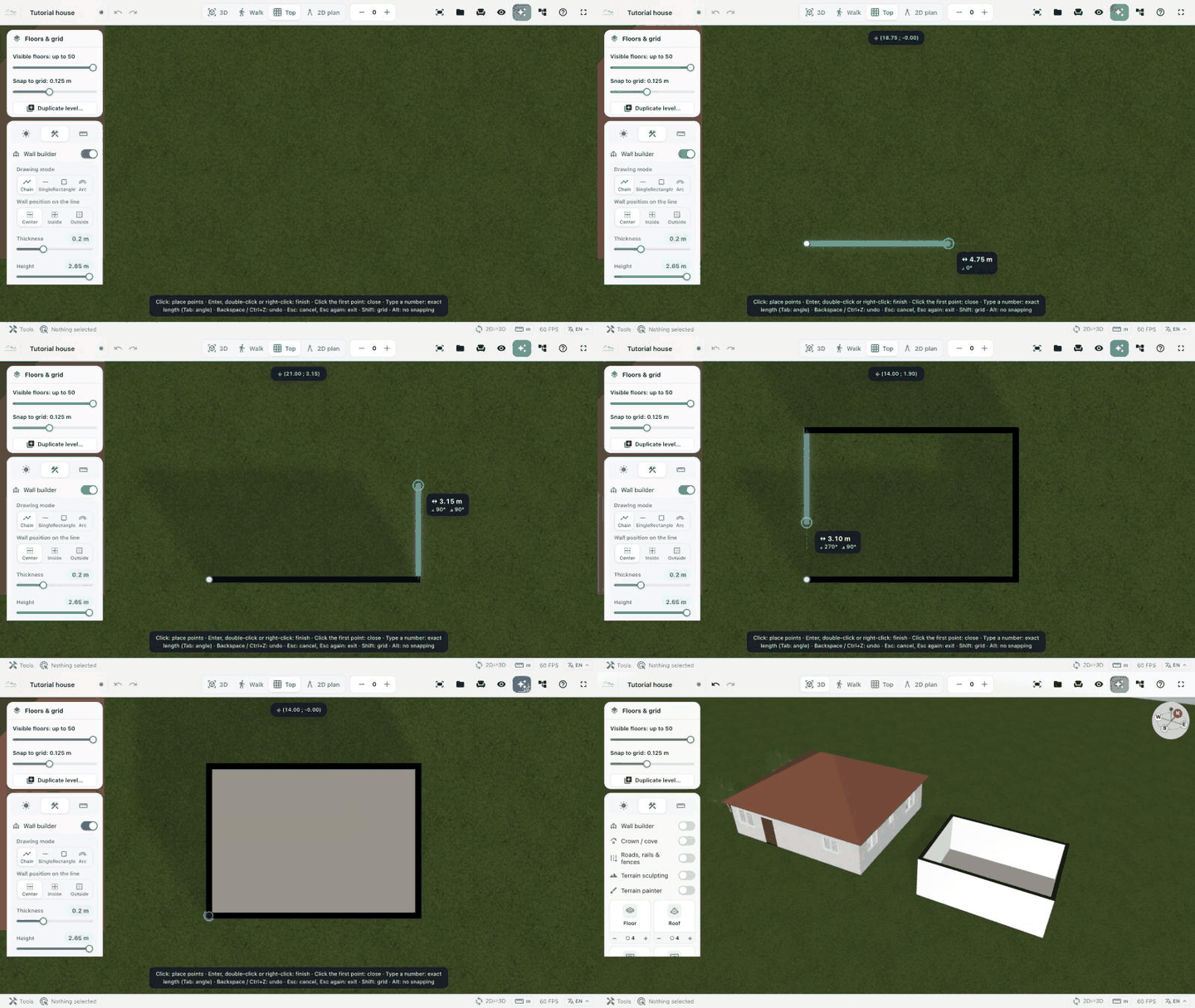
Walls are the base of any plan and the first thing to draw when you create 3D floor plans. Open the Build tab and turn on the Wall builder. The editor switches to the top view and shows the options for the walls:
- Drawing mode: Chain, Single, Rectangle or Arc.
- Wall position on the line: Center, Inside or Outside.
- Thickness and Height of the walls (for example 0.2 m and 2.65 m).
Click to place the points of the walls. While you draw, the editor shows the length and the angle of each segment. Type a number to set an exact length (press Tab to type the angle), hold Shift to snap to the grid and press Backspace or Ctrl+Z to undo the last point. Click the first point again to close the room, or press Enter, double-click or right-click to finish. When you close a room, the floor is created automatically.
Not sure how big each room should be? Our guide What Size Should Each Room Be? gives practical dimensions for every space.
Step 3: Add floors, doors, windows and the roof
The Build tab also contains the building elements. Use Floor and Roof to insert slabs and roofs (choose the number of edges with the − and + buttons), Rough opening and Door opening to cut the walls, and Hip roof or Gable roof to cover the whole house in one click. Select any element afterwards to adjust its size and position.
Doors and windows come from the catalog (category Doors and windows). When a door or a window touches a wall, the opening is cut automatically, so you can sketch much faster.
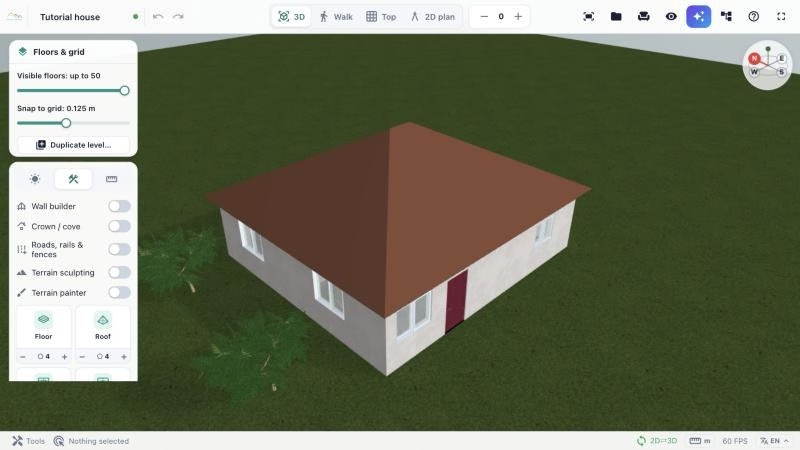
The same tab includes Crown / cove for ceiling trims, Roads, rails & fences, Terrain sculpting and the Terrain painter, so you can also design the garden and the plot around the house.
Step 4: Work on the live 2D plan
Click 2D plan in the top bar to open the 2D planner. It is synchronized with the 3D scene: walls, doors, windows and rooms you draw on the plan appear in 3D as you draw, and when you move a wall in 3D the plan follows. There is no more “Generate” button to press.
The left toolbar of the plan offers Select, Walls, Arc wall, Divider, Joint, Doors, Windows, Stairs, Objects, Rooms, Text and Measure. Each room shows its area, and the plan displays the overall dimensions, which makes it easy to check a layout before you build it. Many people prefer to create 3D floor plans this way: sketch the rooms in 2D and watch the model grow in 3D.
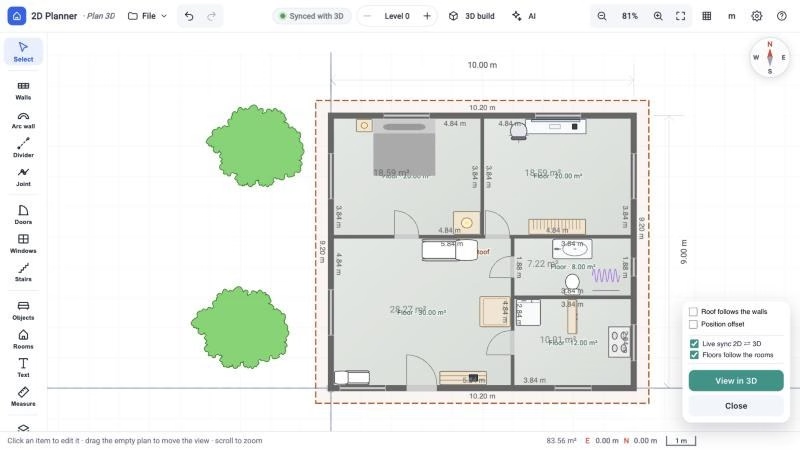
In the plan settings you can keep the options Live sync 2D ⇄ 3D and Floors follow the rooms turned on, and choose whether the roof follows the walls. Click View in 3D to go back to the 3D scene.
Step 5: Furnish the house with the catalog
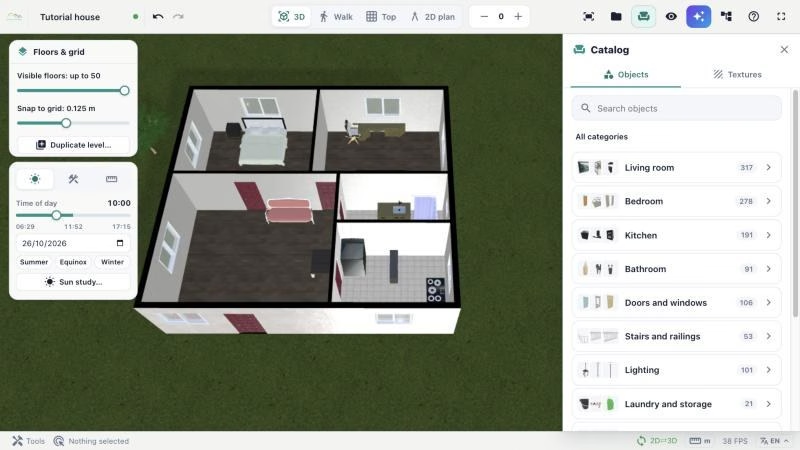
Furniture makes a plan readable, so it is worth adding before you share your design. Click Catalog to open the library. The Objects tab is organized by room and use: living room, bedroom, kitchen, bathroom, doors and windows, stairs and railings, lighting, laundry and storage, garden, leisure, vehicles and more. Use the search box to find an item by name.
Click an object to put it in the middle of the view, or drag it to the exact spot. Then use the gizmo to move, rotate or scale it, and hold Shift while moving to snap it to the grid.
Step 6: Apply materials and textures
Open the Textures tab of the catalog to apply finishes to walls, floors, roofs and objects. Textures are grouped in architecture (concrete, wood, marble and granite, stone walls, exterior paving, plaster and more), materials and nature. If you do not find what you want, click Generate texture with AI.
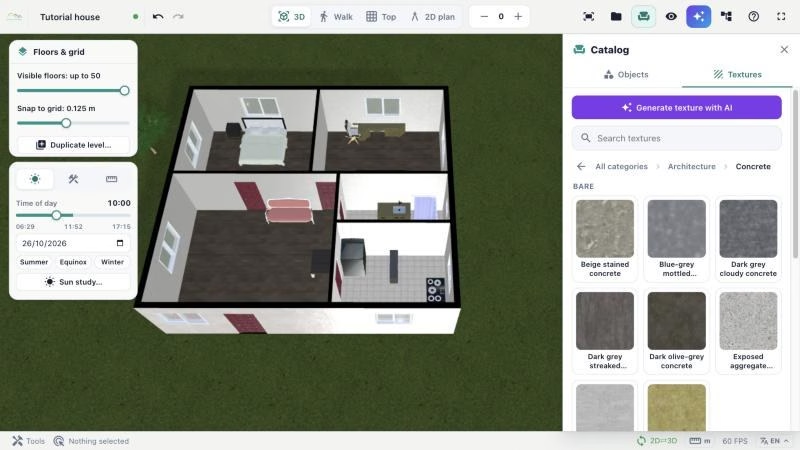
To reuse a finish, go to Measure, copy and paint and turn on the Material brush: pick the material of one element and paint it on others.
Step 7: Let the AI assistant help you
The AI assistant builds and edits the project with the same tools as you: rooms and whole houses, walls, doors, windows, roofs, furniture from the catalog, textures, terrain and BIM data. Describe what you want, for example “Create a house with 2 bedrooms, living room, kitchen and bathroom”, or attach a floor plan, a photo or a file to start from it.
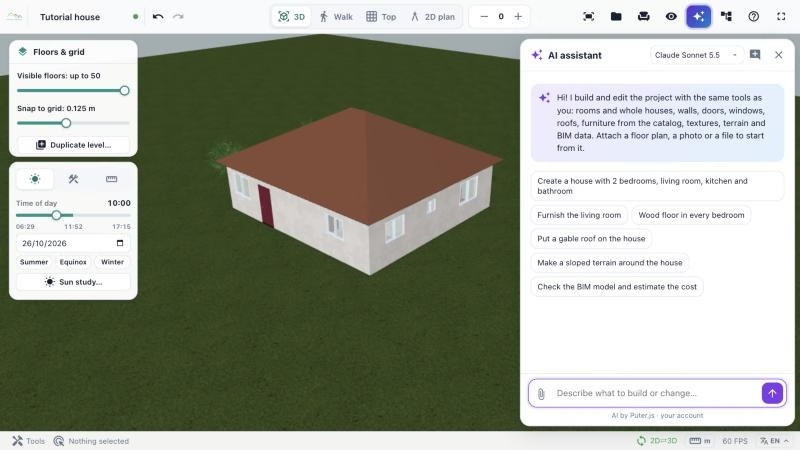
The assistant runs with your free Puter account, and you can choose the AI model at the top of the panel. You can also import an image of an existing floor plan with File › Import floor plan to convert it into a 3D model.
Step 8: Walk through and render your design
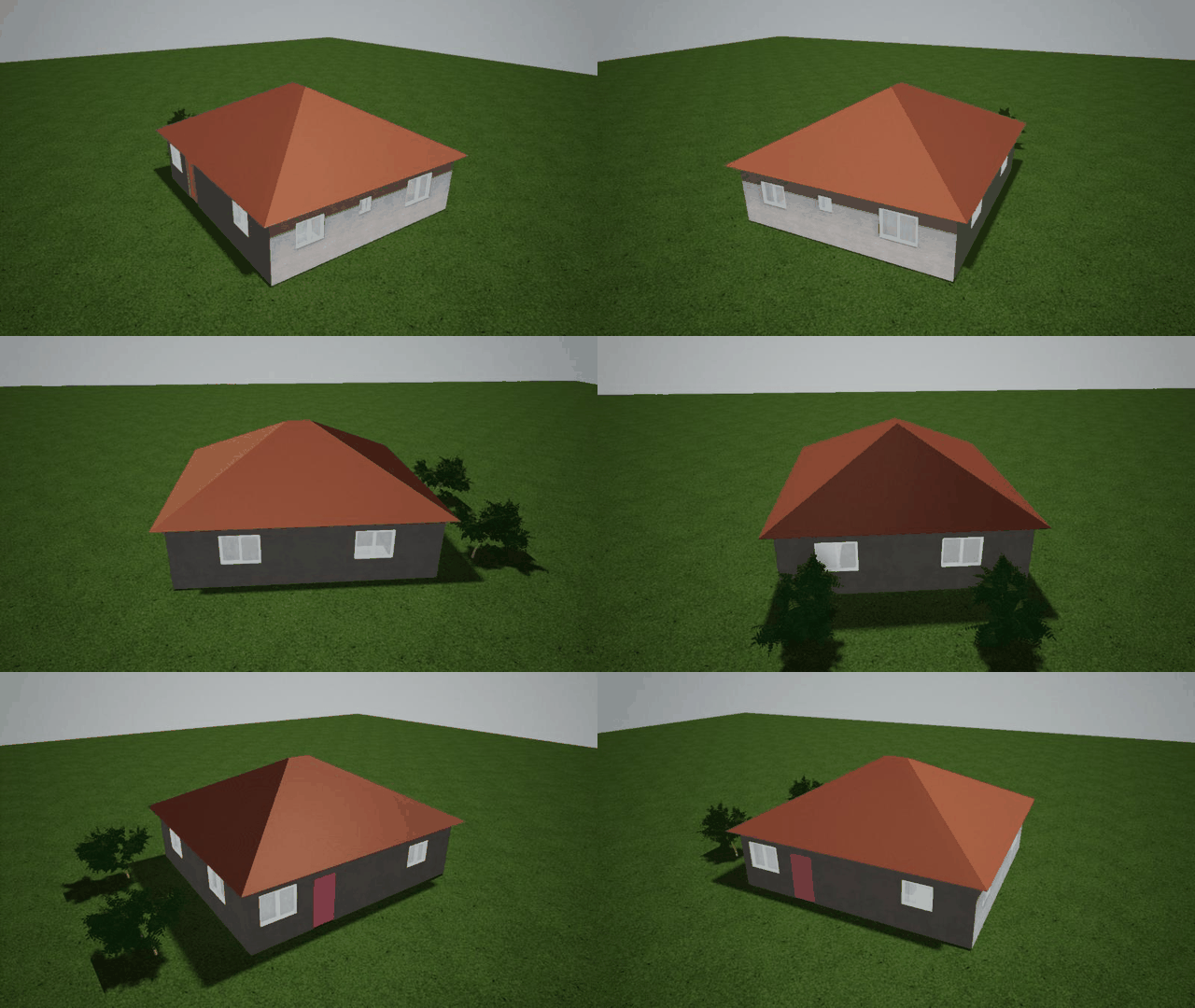
Use the Walk view to explore the house at eye level (WASD or arrow keys) and the Top view to check the layout from above. The render menu lets you choose how much your computer should work:
- Draft: the fastest mode, with lower resolution and no shadows.
- Balanced: the original look, with soft shadows on the ground.
- High: shadows everywhere, ambient occlusion, tone mapping and depth of field.
- Ultra realistic: reflections, contact shadows and a 4K shadow map (needs a good GPU).
- Path tracing: real light bounces computed in your browser.
- AI photo: a photorealistic image of the current view generated by AI in the cloud.
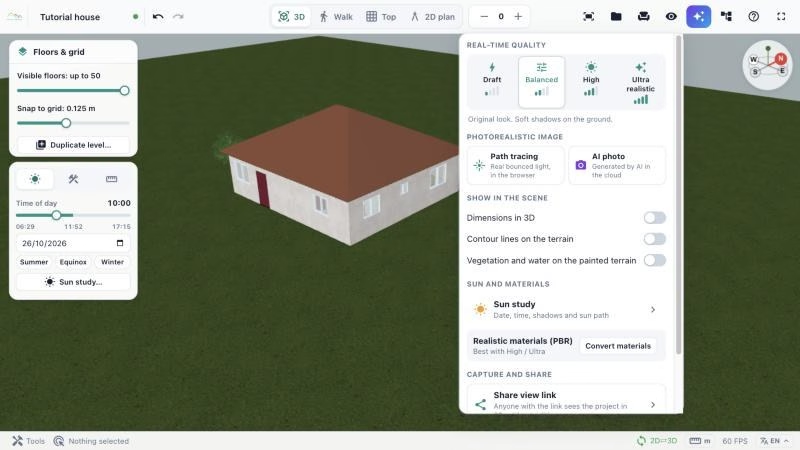
The same menu shows dimensions in 3D, contour lines and vegetation on the terrain, opens the sun study and converts classic materials into realistic PBR ones. To present the project, create a camera tour and record a video.
Step 9: Check quantities and costs with BIM
Every wall, slab, opening and object carries IFC classes and properties. Open the BIM panel to browse the model tree, edit properties and types, and see the Quantities grouped by IFC class with counts, areas, volumes and an estimated cost. You can export the schedule to CSV or XLSX or print it, which turns the tool you use to create 3D floor plans into a simple budgeting tool as well.
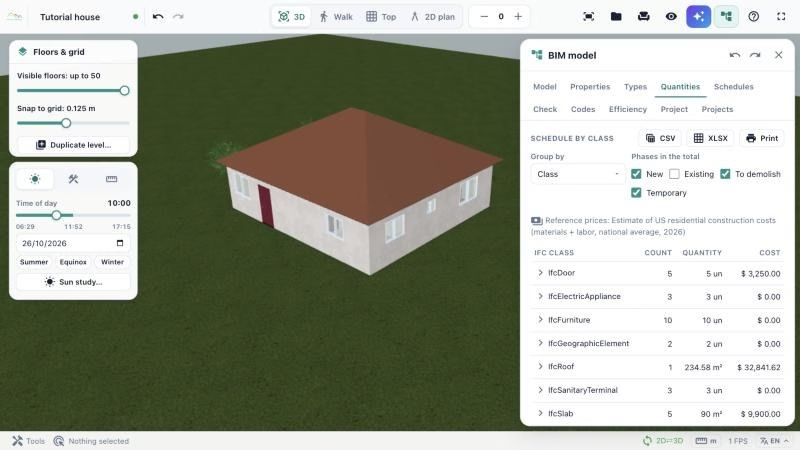
The Check tab runs a model check that finds overlaps, openings outside walls, empty levels and rooms without windows. The open BIM format behind it is IFC (Industry Foundation Classes), so you can exchange the model with other BIM and CAD tools.
Step 10: Save, share and export
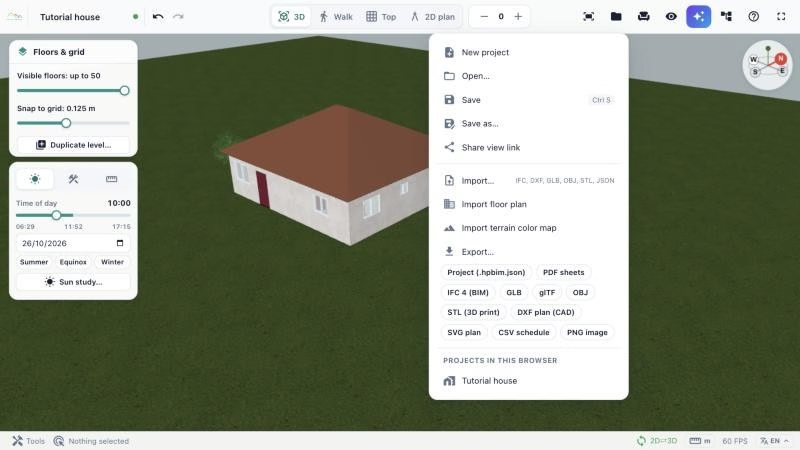
Projects are saved in your browser (press Ctrl+S) and listed under Projects in this browser. Because nothing is uploaded to a server, export a project file (.hpbim.json) from time to time to keep a backup or to continue on another computer. Use Share view link to let anyone see the project in their browser.
The File menu imports IFC, DXF, GLB, OBJ, STL and JSON files and exports to:
- IFC 4 (BIM) and CSV schedules for architects and engineers;
- DXF plan (CAD), SVG plan and PDF sheets for drawings;
- GLB, glTF and OBJ for other 3D programs, and STL for 3D printing;
- PNG image for quick presentations.
Conclusion
Now you know how to create 3D floor plans with 3D House Planner, from the first wall to a BIM model ready to export. Start with a simple room, try the live 2D plan, furnish it from the catalog and ask the AI assistant for help when you need it. The app is updated all the time, so explore the menus to discover new features.
3D House Planner is free and stays free. If it helps you, you can support the project with a donation or by leaving a review: reviews help us improve and help other people find the app. Go to the 3D House Planner website and click “Contribute”.
Ready to start? Open the editor and create your first 3D floor plan.
Frequently Asked Questions
Is 3D House Planner free?
Yes. You can create 3D floor plans for free, for personal and commercial use, with no login and no watermark. Donations help the team keep improving it.
Where are my projects saved?
In your own browser storage, with autosave and recovery. Nothing is uploaded, so export a project file to keep a copy or to open it on another device.
Can I start from an existing floor plan?
Yes. Import an image of the plan with File › Import floor plan, open a DXF or IFC file, or attach the plan to the AI assistant and ask it to build the house.
How long does it take to create a 3D floor plan?
A simple room takes a few minutes and a small house can be drawn in under an hour. With the Wall builder and the AI assistant you can create 3D floor plans even faster. Detailed projects with furniture, materials and BIM data take longer, but still much less time than traditional CAD.
Do I need a powerful computer?
No. You can create 3D floor plans in the Draft and Balanced modes on most laptops. The High and Ultra modes and path tracing look better on computers with a good graphics card.